
Set up Gem CX in Gorgias
Gem CX is an AI customer service agent for e-commerce. Once installed, it answers your customers in Gorgias, on chat, email, contact form and help centre tickets, from the content you publish. When a question needs a person, it hands the ticket to your team with a note and a tag.
The install takes a few minutes. The agent starts in draft mode, so no customer gets an answer until you decide it should.
Before you start
- A Gorgias account and a user with admin rights, to accept the permissions.
- Gorgias Chat, a support email address connected to Gorgias, or both.
- Published content for the agent to answer from, such as help articles, FAQ, shipping and returns pages or public PDFs. With your consent, Gem CX can also read your Shopify or Magento catalogue.
- New chats and emails left unassigned at first. The agent only answers tickets that no teammate is assigned to. A rule that assigns every new ticket to an agent therefore keeps it silent.
Install the app
- In Gorgias, open Settings, then Apps, then App Store. Search for Gem CX.
- Open the Gem CX listing and click its connect button.
- Gorgias shows the permissions Gem CX asks for. Check that the account address is yours, then accept.
- You land on a Gem CX page that confirms the connection. The agent now runs in draft mode.
What the install changes in Gorgias
Gem CX adds one HTTP integration named Gem CX to your account. Gorgias calls it on each new ticket and message, so the agent can read the ticket. Please leave it as it is. Gem CX adds no rule, view or macro. It puts these tags on the tickets it handles.
gemcx-draftfor an answer or a handover suggested in draft modegemcx-repliedfor an answer sent to the customergemcx-handofffor a ticket handed to your team. The agent does not come back to it.
Add your content
Right after the install, the Add your content button opens your Gem CX setup page. There you give the address of your site and of your help centre, which we read for you. A Gorgias Help Center is suggested automatically when there is one. You can also ask a test question there, without anything reaching a customer. For your public PDFs or your catalogue, write to us. Until content is added, the agent suggests handing every ticket to your team.
Check that it works in draft mode
- Ask a question your content answers, from the Gorgias Chat on your site or by email to your support address.
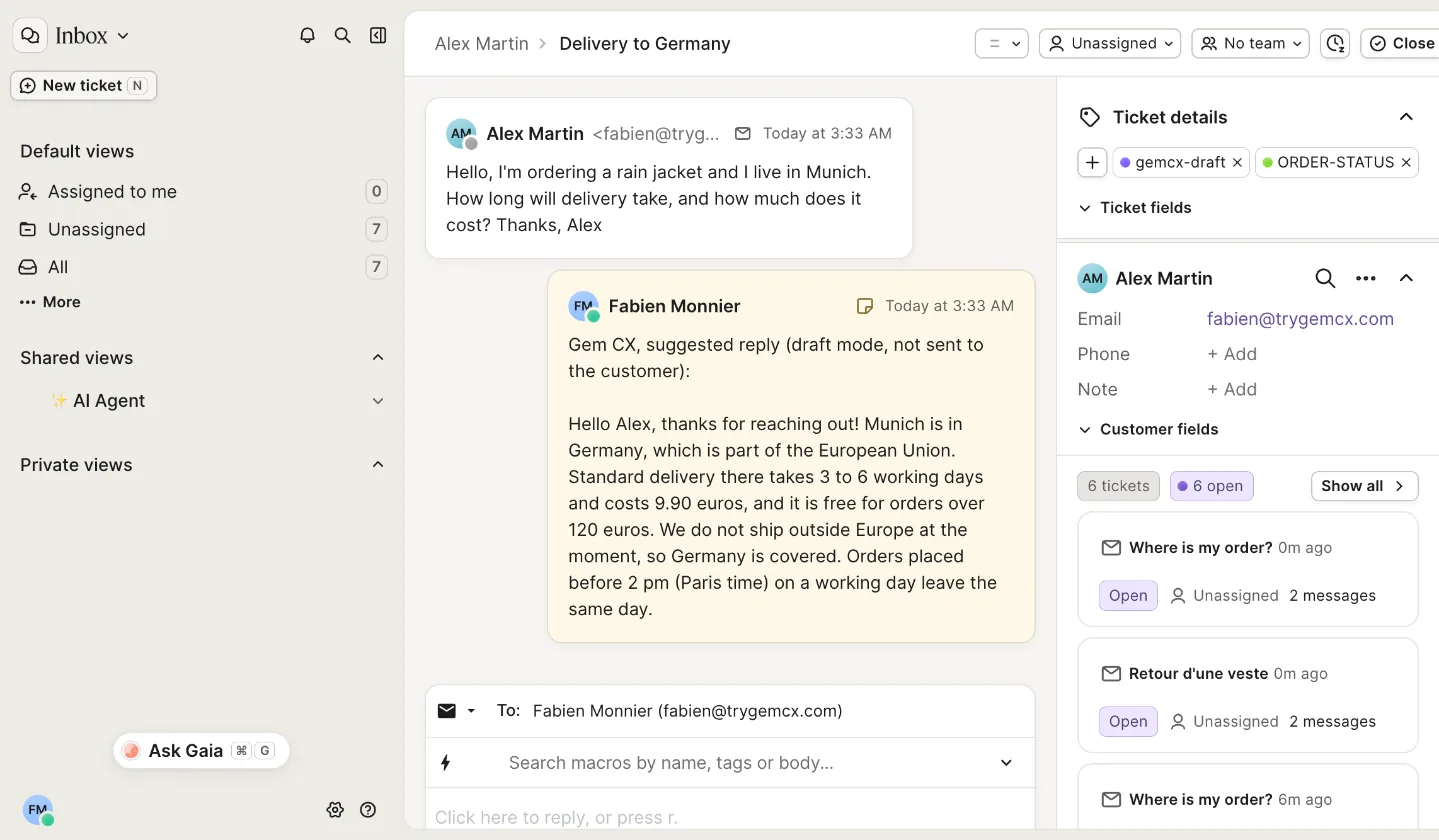
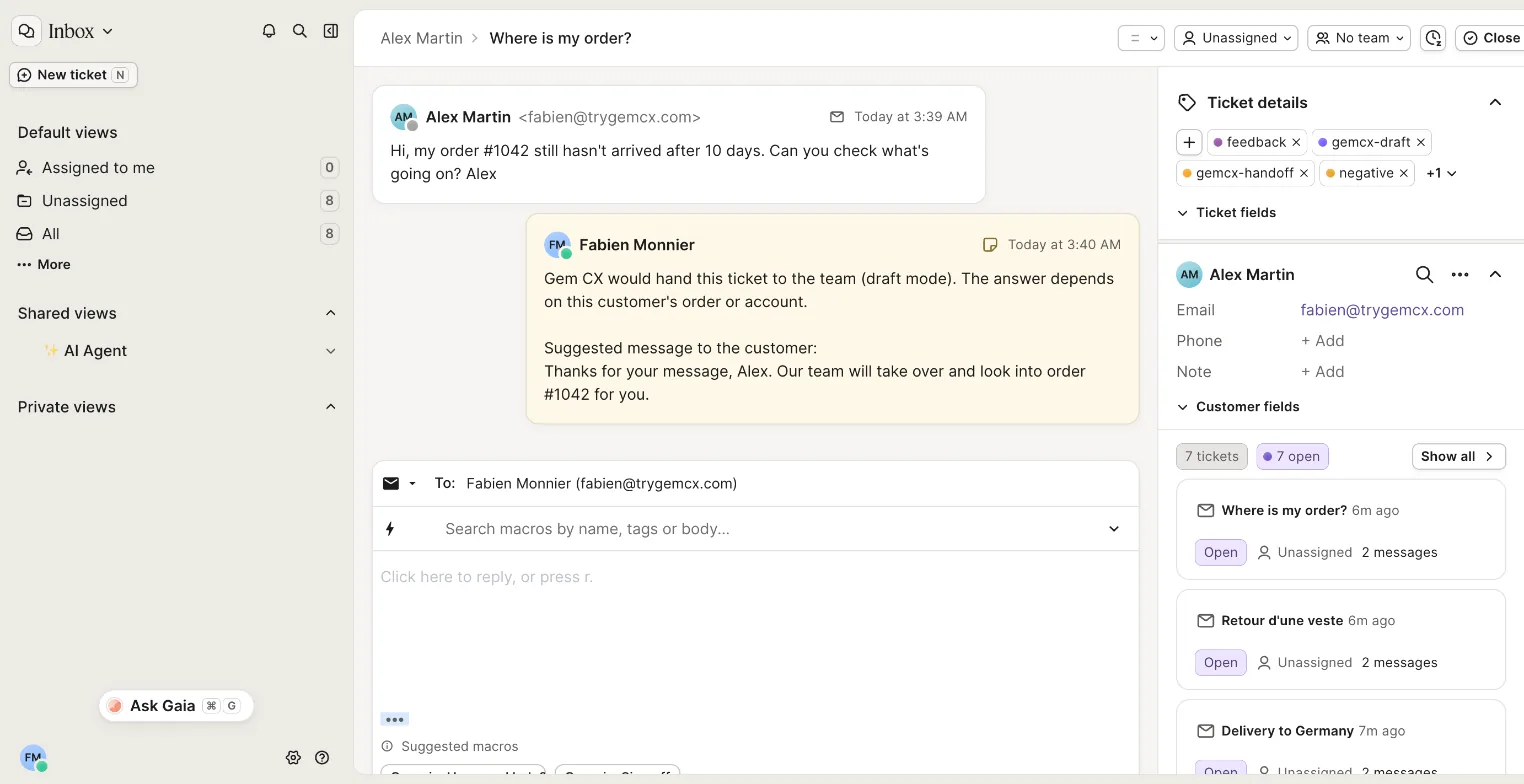
- Within a minute or so, the ticket gets an internal note from Gem CX with the suggested answer. The ticket carries the tag
gemcx-draft. - Ask something your content does not cover, or ask for a person. The note then says Gem CX would hand the ticket to your team, with the reason.
Go live
When the draft answers look right to your team, ask for live replies from your setup page, or write to contact@gem-cx.com. We then switch the agent to live replies. From then on:
- it answers the customer on the same chat or email thread and tags the ticket
gemcx-replied - when it hands over, it sends a short message to the customer, adds a note for your team and tags the ticket
gemcx-handoff
A message to the same address is enough to go back to draft mode. Live replies are part of a Gem CX subscription, see pricing.
Tickets the agent leaves to your team
- tickets assigned to a teammate
- tickets tagged
gemcx-handoff - closed tickets and tickets marked as spam
- other channels, such as social media, SMS or phone
- tickets where your team wrote the last message
Common issues
- No note appears on a new ticket. Check that no rule assigns it automatically, that its channel is one of those listed above and that Gem CX is still in Settings, Apps, Installed Apps. Check also that the Gem CX HTTP integration is active. Gorgias turns off an HTTP integration after many failed calls.
- Every note suggests handing the ticket to the team. Your content is not added yet, or it does not cover these questions. Write to us to add more.
- The agent answered a ticket it should have left. Add the tag
gemcx-handoffto the ticket so it does not come back to it. Tell us too, so we can correct it. - You reinstalled the app. Gem CX removes the old HTTP integration by itself and keeps your content.
Uninstall
In Gorgias, open Settings, then Apps, then Installed Apps, select Gem CX and click Delete app. The agent stops at once. If the Gem CX HTTP integration is still in your account, you can delete it. Your content and settings at Gem CX are erased 30 days after you uninstall, or sooner on request to contact@gem-cx.com. If you reinstall within that time, everything is restored.
Support
By email at contact@gem-cx.com or by phone at +33 6 99 09 88 57, Monday to Friday, Paris time. See also our Terms of Service and our privacy policy.